How to submit an App SDK
Submitting an App SDK will allow you to offer the app to customers to download and use.
This guide assumes you've completed the getting started guide.
- Open a Terminal or Command window and enter the build command (
nx run [name-of-your-app]:build) to build your App SDK.
npx nx run [name-of-your-app]:build
- Verify the Name and Version number in the package.json in the
dist/apps/[name-of-your-app]. When the App SDK is submitted, the name and version fields combine to create a unique identifier for the app.
"name": "[name-of-your-app]"
"version": "1.0.0",
- Enter the submit command (
nx run [name-of-your-app]:submitApp) to submit your app for approval.
npx nx run [name-of-your-app]:submitApp
-
Accept the developer terms and conditions) by typing
acceptwhen prompted. -
A browser will open, asking you to authenticate your ID. Use your Trackunit manager credentials to authenticate your ID. It will inform you your device is activated.
By device it refers to the command line interface.
-
Once the submit is complete it will show
🚀 Uploaded the app package version 1.0.0.
Remember to bump the version number inside apps/[name-of-your-app]/package.json before you build and submit!
It is not possible to submit the same version multiple times.
CI/CD publishing
API Tokens V2 are being gradually rolled out. If the API Keys app is not available in Manager, contact your Trackunit representative to request access.
When running in a CI pipeline, the App SDK can authenticate with an API key and submit the app without opening a browser.
Create a dedicated API key from the Trackunit account that owns the app's package namespace:
- Log in to Trackunit Manager.
- Under Administration, open API Keys and add a new API key.
- Give the key a recognizable name and description, then add only
iris.app.submitunder Allowed Scopes.
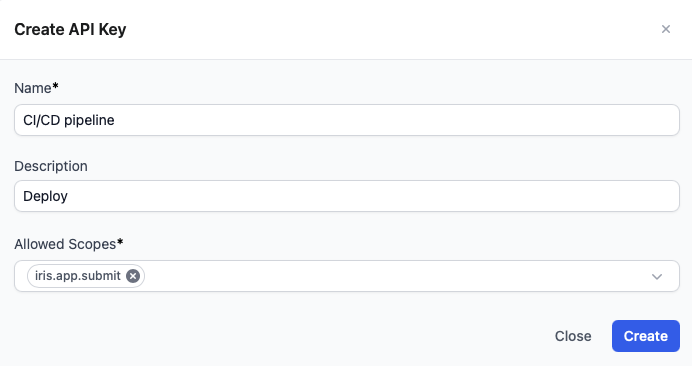
- Create the key and copy its Client ID and Client Secret. Store the client secret in your CI/CD platform's secret store. The client secret is only shown once.
The App SDK exchanges these credentials for a scoped access token automatically. Set the following environment variables when running the submitApp target:
TU_API_TOKEN_CLIENT_ID: the API key's Client ID.TU_API_TOKEN_CLIENT_SECRET: the API key's Client Secret. Treat this value as sensitive.TU_DEV_TERMS_AND_CONDITIONS=accept: accepts the developer terms and conditions non-interactively. Set this only after reviewing and accepting the terms.
For example, a GitHub Actions step can use repository secrets:
- name: Submit IrisX App
  run: |
    npx nx run my-app:submitApp
  env:
    TU_API_TOKEN_CLIENT_ID: ${{ secrets.TU_API_TOKEN_CLIENT_ID }}
    TU_API_TOKEN_CLIENT_SECRET: ${{ secrets.TU_API_TOKEN_CLIENT_SECRET }}
    TU_DEV_TERMS_AND_CONDITIONS: accept
Never commit the Client Secret to source control or expose it in CI logs. If it is exposed, rotate or revoke the API key in Manager.